

Here’s how to share the same file in SharePoint in a controlled way, without creating a new link for every situation.
In SharePoint’s new sharing view, a file can have a unified sharing address called a Hero Link. The idea is simple: the file’s URL stays the same even if recipients or their roles are later modified.
The key difference: the link leads to the file, but access permissions determine whether the recipient can open or edit it. Merely sending the link doesn’t automatically grant access.
Manage Two Things in the Share Dialog
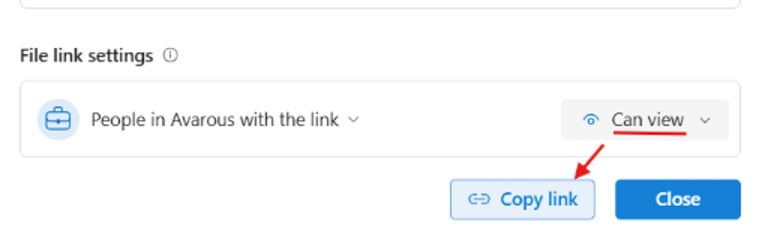
When you open the file’s Share view, check both the people and groups who already have access to the file and the audience of the link. In the same view, you can add recipients, select their role, and copy the link to use in Teams or email.
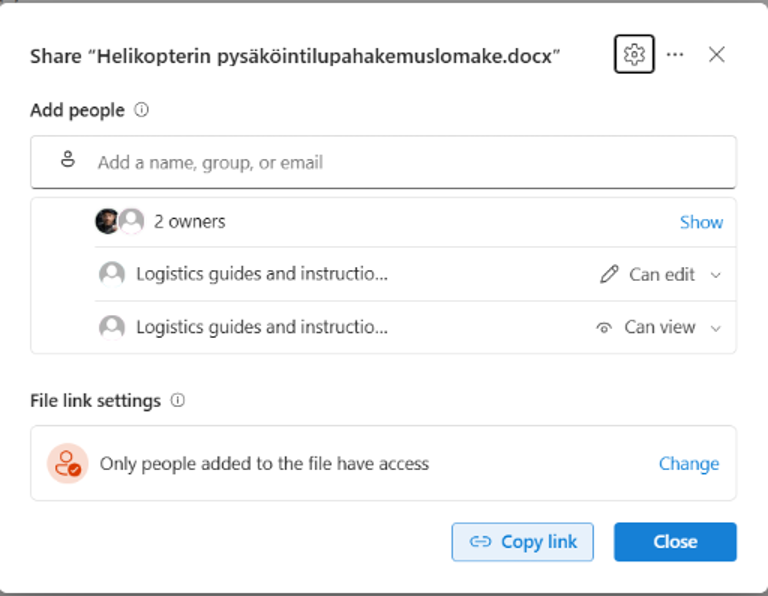
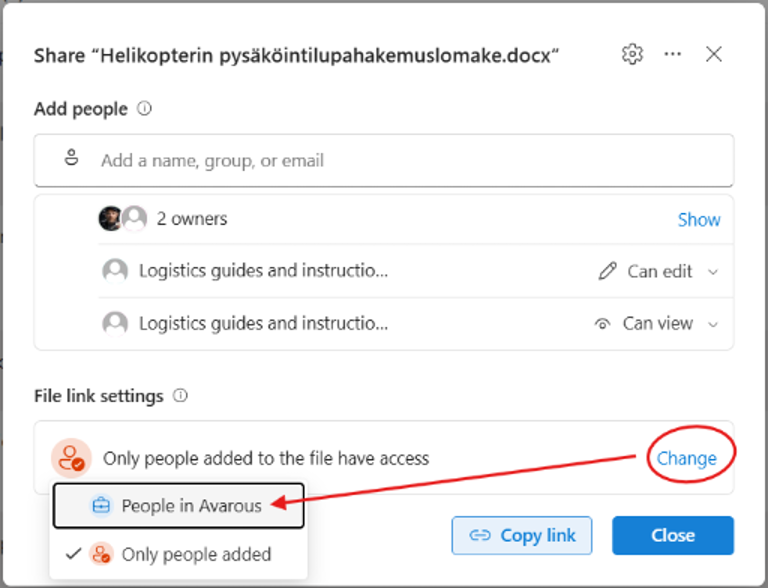
If the setting is Only people added, the Hero Link works only for those who already have access to the file. For example, a person’s previous view-only permission does not automatically become edit permission just because they receive the same link again.
The Same Link Stays Even When Permissions Change
You can first give a recipient view-only access and later switch it to edit access. The existing Hero Link URL remains unchanged, so you don’t have to send a new link when only the role changes.
Choose the Smallest Necessary Role
- Can view: the recipient can read the file.
- Can review: in Word, the recipient can comment and make tracked suggestions if this role is available.
- Can edit: the recipient can modify the content directly.
Note that selecting a smaller role does not override broader access granted elsewhere. For instance, if the person belongs to a group with edit rights, they can still edit the file even if you assign them a view or review role separately.
A Link Is Not the Same as Permission
File access can come through several routes. A person can gain access through direct sharing, via Microsoft 365 group or Teams membership, from site or folder inheritance, or through a separate sharing link. These all interact together.
Example: a view-only link given to someone doesn’t reduce their access if they already have edit rights through a group. For the same reason, deleting one sharing link does not necessarily revoke access.
Use a Separate Sharing Link for Temporary Needs
If you need to share the same file with a limited audience for a fixed period, you can create a separate sharing link. Depending on your environment, this feature can be found under Other links or a similar section in the sharing view, the exact labels may vary.
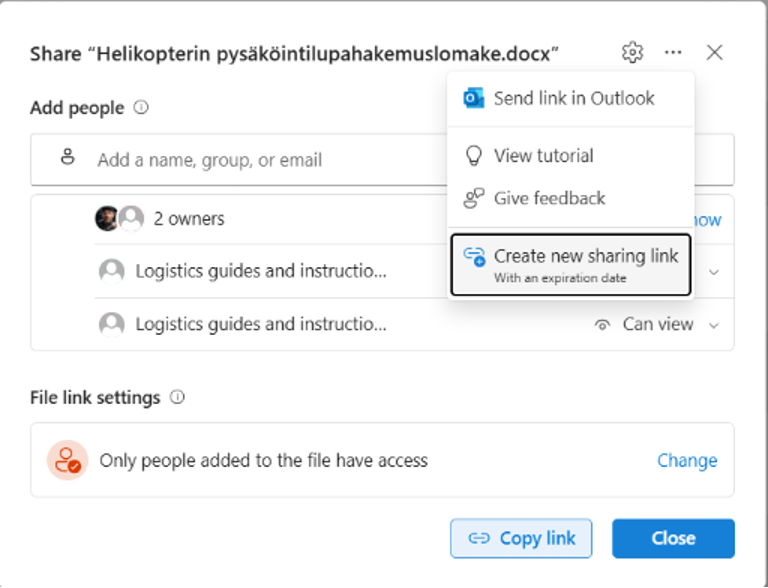
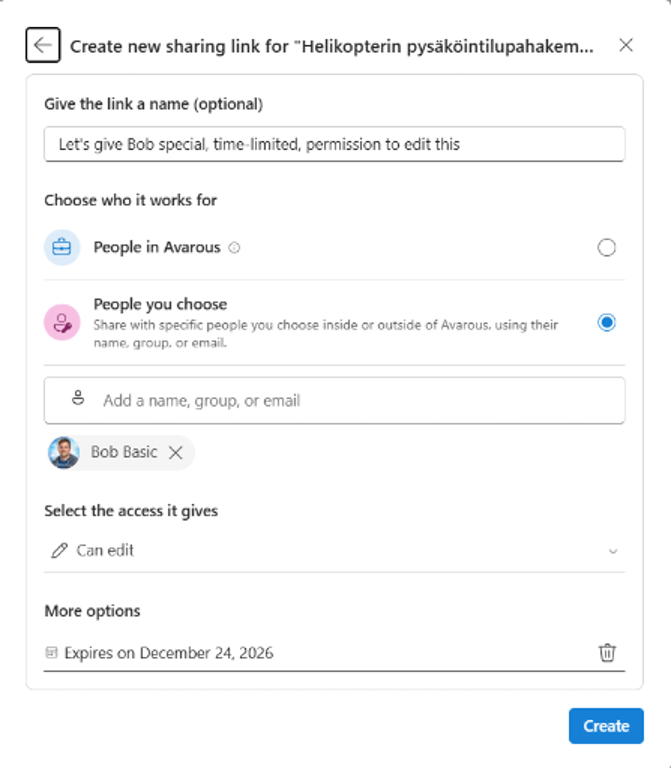
Give the link a descriptive name, choose its audience, and select the smallest necessary role. If available and allowed by link type, set an expiration date. The expiration applies only to that specific temporary link, not the general Hero Link.
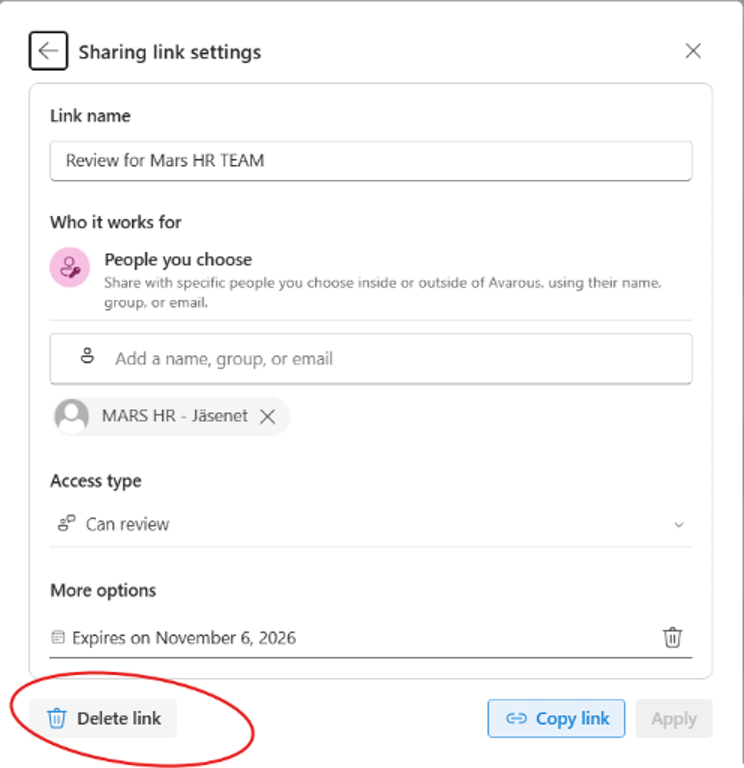
Remove Temporary Links When No Longer Needed
A temporary sharing link can be deleted before its expiration date. This is especially important if the link has no expiry. Remove the link only if your permissions allow it; otherwise, ask the file or site owner to make the change.
Review the Whole Set of Links Regularly
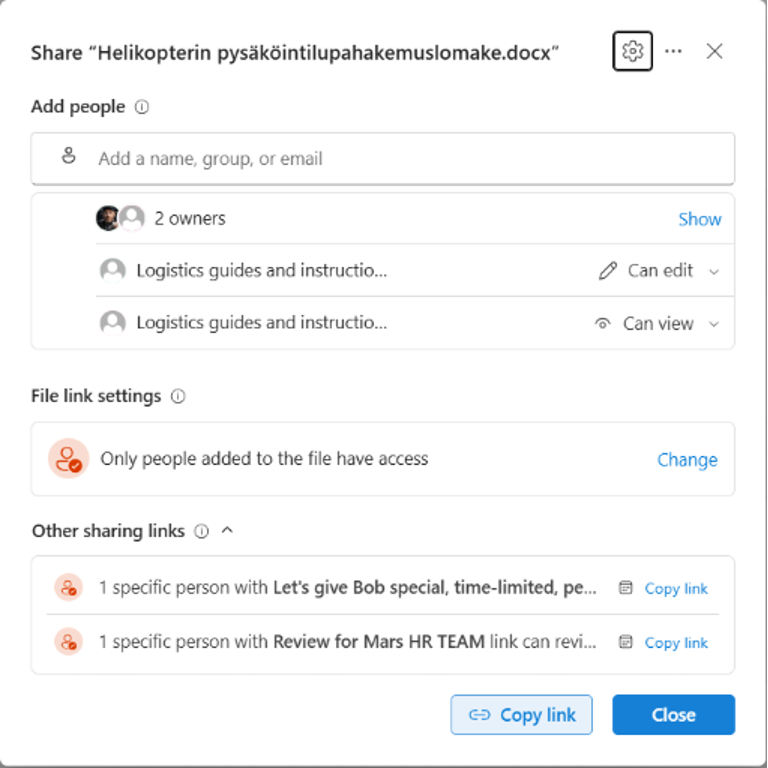
Having multiple links doesn’t necessarily mean unsafe sharing. However, every link should have a clear purpose. Regularly review who each link works for, what role it grants, and how long it will be needed.
Sharing Can Also Be Restricted at the Site Level
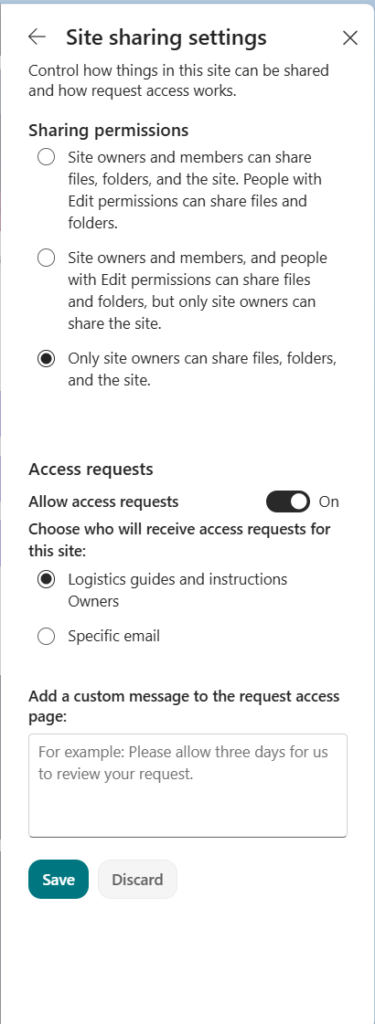
SharePoint site owners can limit sharing rights to site owners only. In this setup, members must submit access requests, which the site or team owner reviews. The need for this setting depends on the site’s purpose.
In a regular teamwork site, broader sharing permissions may make sense, while in a managed information repository, owner-driven sharing can be a better model.
Checklist for Controlled File Sharing
- Check the link audience before sending.
- Select the smallest role necessary for the task.
- Remember that groups, inherited permissions, and other links can grant access to the same file.
- Name temporary separate links and set an expiration date if possible.
- Remove unnecessary links or permissions once work is completed.
- Ask the owner for help if your permissions aren’t sufficient to make changes.
Note: The new Hero Link sharing view, labels, and availability can vary by Microsoft 365 environment, file type, and policies. Test the behavior with a sample file before broader guidance or rollout.